After working with linux for servers, the only next logical move was to change my daily windows station to a linux system. This was after considerable inner conflicts regarding what will be optimal setup for my worklife. Although, I wanted to test it with the the KDE Interface, I went Gnome with the initial setup for it’s simplicity. But as soon as I checked out it’s interface, I realised that it has been optimised for all input modes, including touch screens. So, I had to go in and find apps to modify the UI to make more non-touch interface friendly.
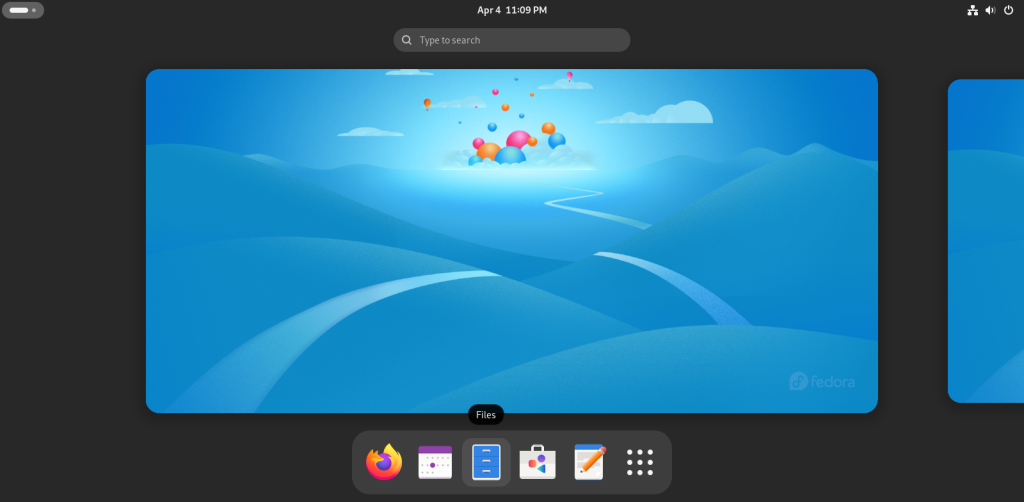
The very first issue I had was number of steps required to reach the app drawer, So, I went for a hunt to find ways to tweak the default Gnome interface. Although, customization is not exactly something Gnome is known for, there are still few things you can do to modify it. Starting with installation of our first app.
1. Tweaks
Tweaks is a simple application which allows Fonts, Apperance(Themes) and few other modification to the Gnome interface which you might not have direct access to from the settings app. From here, you can modify things directly and allows you to apply user installed themes directly. To install Tweaks you can simply go to the Software Manager for Gnome or use the following command.
sudo apt-get install gnome-tweaksor
sudo dnf install gnome-tweaks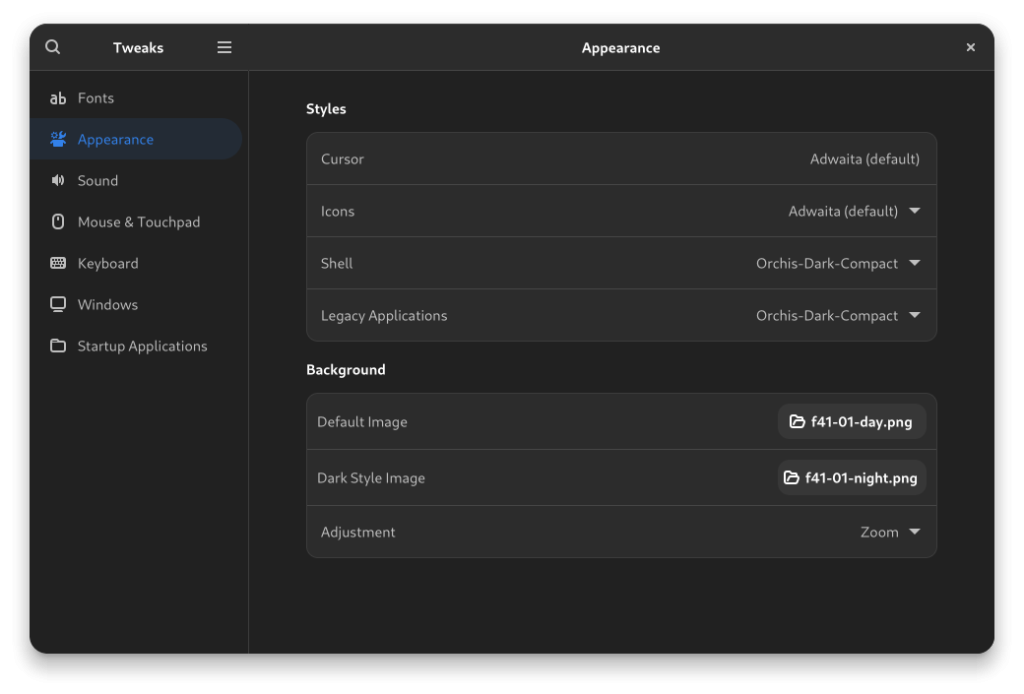
2. Extensions or Extension Manager
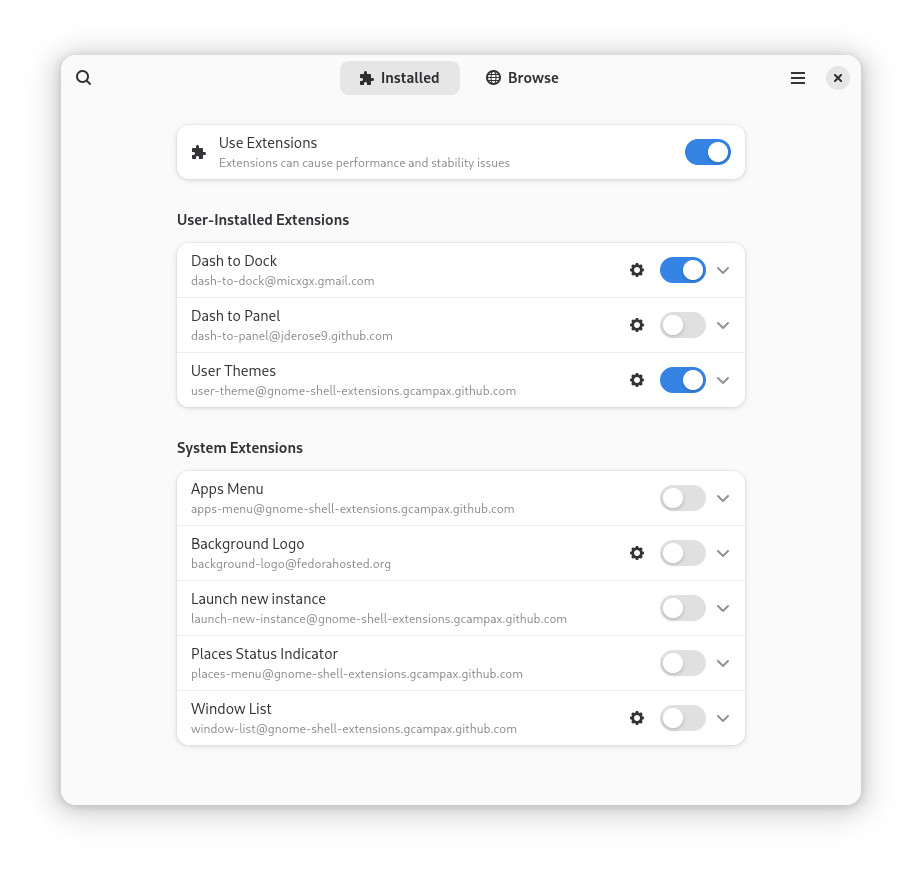
These are two different applications but they both are used for the same thing, with one difference, Extension Manager allows you to search for extensions, install or remove them while allowing you to modify their settings as well. This provides a slight benefit while using the Extensions. To install Extension Manager you can install the following command:
sudo apt-get install gnome-shell-extension-manageror
sudo dnf install gnome-shell-extension-manager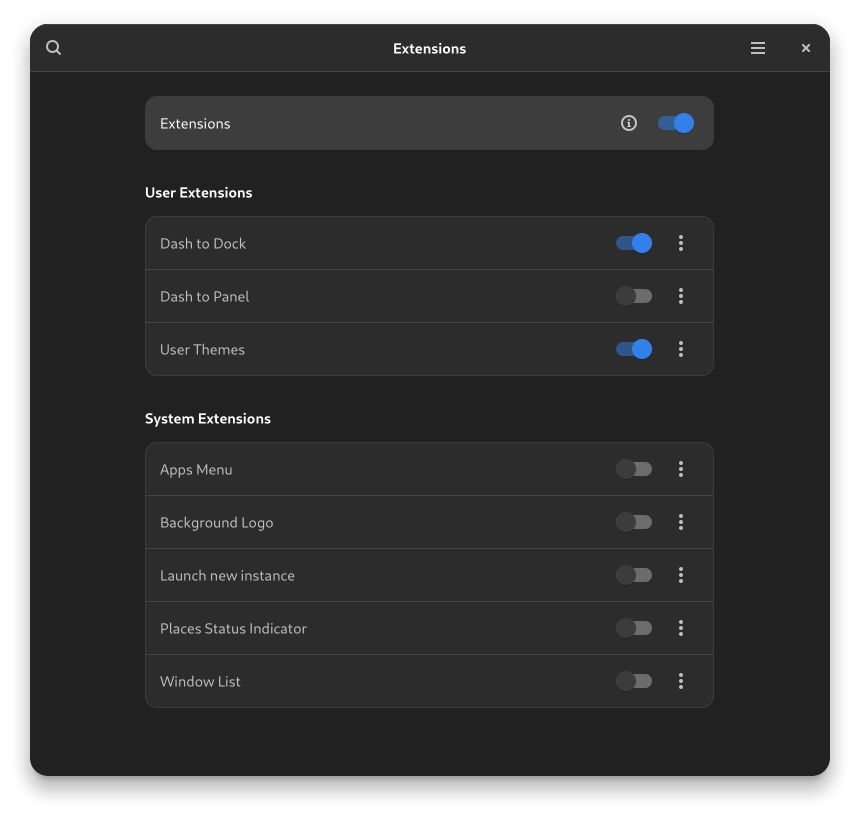
The Extensions application uses the Material interface to list out and manage the installed Extensions. The important thing is, it allows you to turn on the User Themes, which in return allows you to install and apply User Themes on desktop environments. To install Extensions you can use the follwoing commands:
sudo apt-get install gnome-extensions-appor
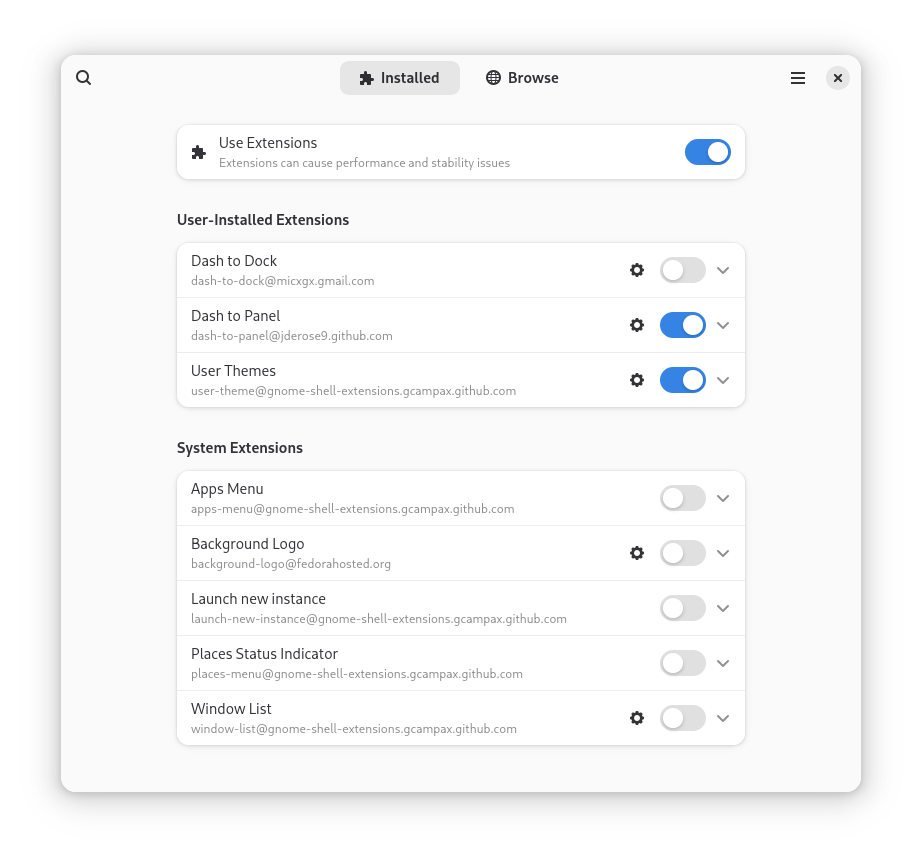
sudo dnf install gnome-extensions-appOn the contrary the Extension Manager looks like a software management tool, but for GNOME scripts. The following screenshot shows Installed extensions with the Extension Manager. As you can see, we have installed turned on the Dash to Dock extension.
3. Dash To Dock or Dash To Panel
These are more of extension options rather than application to modify the app drawer or the desktop.
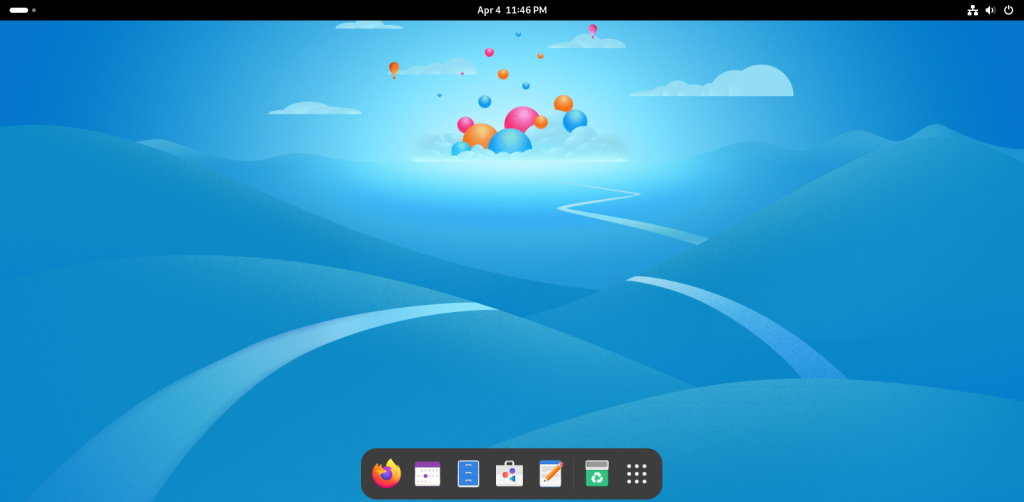
The following screenshot shows how the Desktop looks after installing the Dash To Panel. This extension reduces a click to get to the application drawer. Everything else works the same, and you can also change the side the dash is docked to any side you like, top, bottom, left, or right.
After that, the other extension you need to check out is the Dash to Panel. It is recommende to activate only one of those two so that the UI components don’t overlap. The following screenshot shows the Dash to Panel Activated.
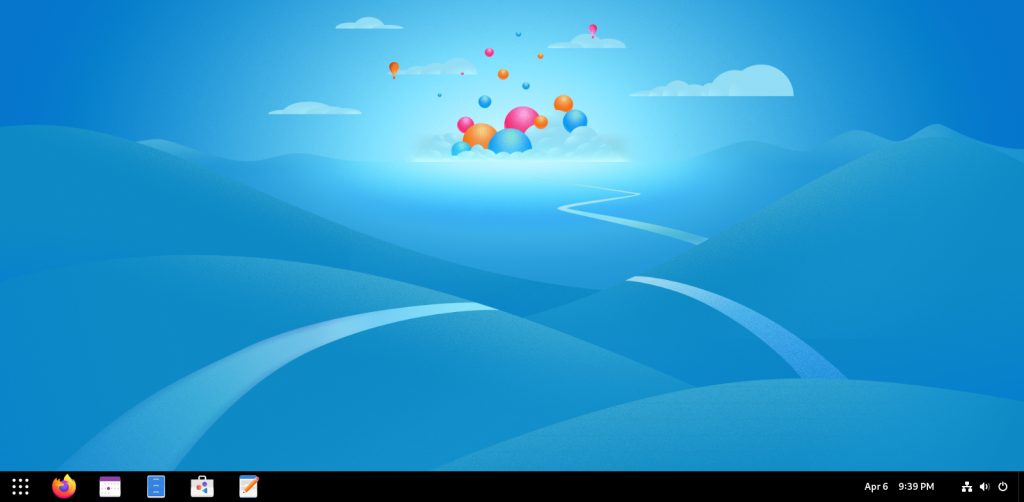
Dash to Panel removes the top bar completely and unifies it with the app dash component. This makes it feel closer to the older Windows UI. The following screenshot shows how it looks after you active the Dash To Panel extension.
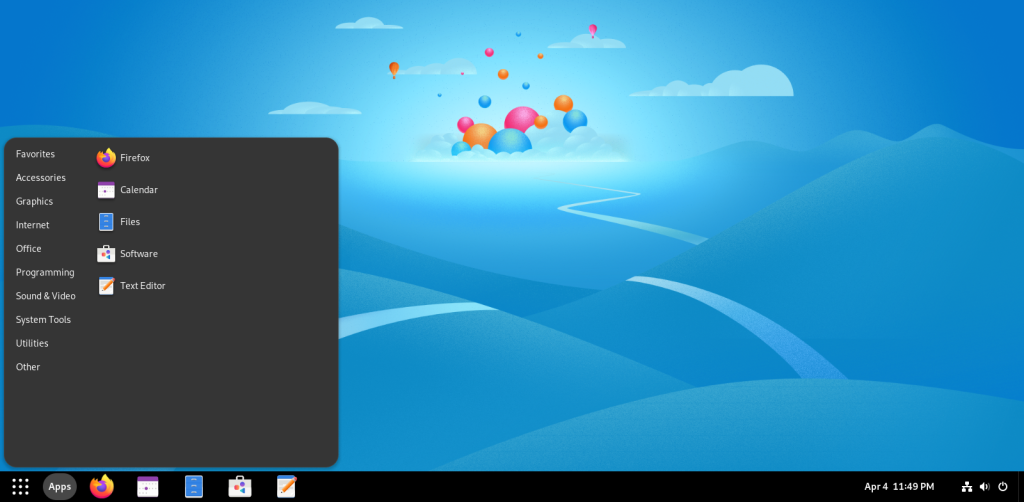
You can also activate the Apps Menu and get a windows like start menu with all you application organized as per their categories. This can make it easier to find application if you have large number of applications installed for different task.
And that’s it. These are the must have application or extensions to maximize your output on any Linux system with GNOME desktop environment. We will be covering the KDE Plasma and Cinnamon environments soon.
Let us know what are your most loved linux application/extensions.